
Reviewing and approving actions in the Feed
Note: This feature is part of the AI TC add-on. See Plans and pricing.
The Feed is where Reme, your AI transaction coordinator, queues up everything it wants to do — draft an email, flag a deadline, request a document — so you can review it before anything happens. Open it from the sidebar or the Open Feed button on your Home dashboard.
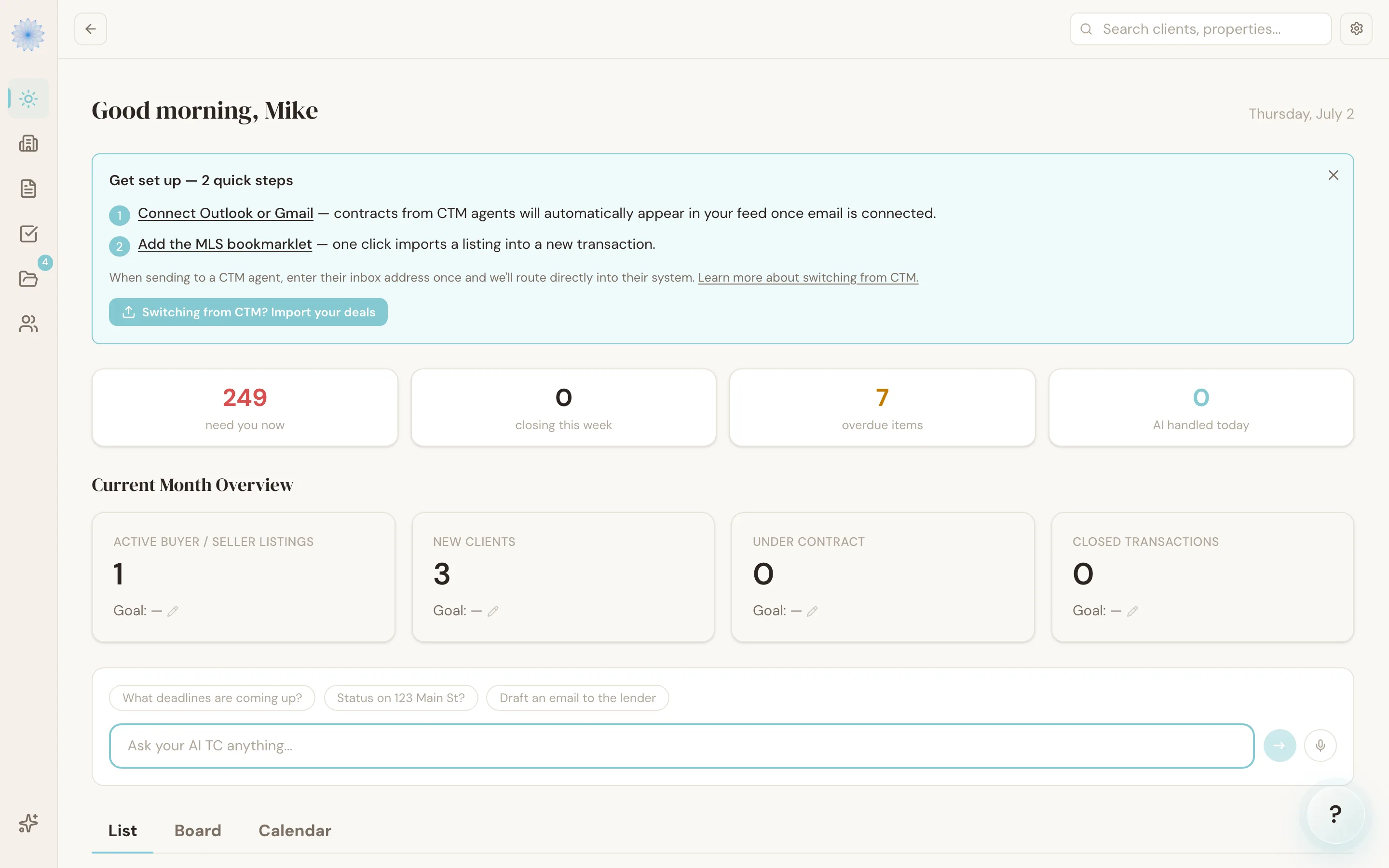
Note: On some accounts, the Feed's contents appear folded into the Home dashboard instead of a standalone page. The same approve, edit, and skip actions work either way.
Reading a Feed item
Each card in the Feed shows:
- A risk badge — LOW, MED, or HIGH
- The property address and current stage
- What Reme wants to do (for example, "Email Draft" or "Deadline Alert")
- How long ago it was queued
Click a card to expand it and see the full draft.
Some items get a dedicated card instead of the standard layout — inbound CTM eContracts (CTM) signing requests, counteroffers, and deadline mismatches each render their own review screen with the relevant details up front.
Approve, edit, or skip
For a standard item, you have three options:
- Approve & Send (the button label changes based on the action — for example, "Approve & Send to Sign" for a new inbound transaction) — Reme carries out the action as drafted.
- Edit Draft — opens the editable fields (recipient, subject, and body, depending on the action type) so you can change the wording before approving.
- Skip — dismisses the item without acting on it. You have 5 seconds to click Undo before the skip goes through.
Warning: Once you click Approve, the action runs — an email drafted by Reme is not proofread again after you approve it. Review the draft before approving, especially on HIGH-risk items.
Run the agent manually
Click Run agent now at the top of the Feed to trigger Reme immediately instead of waiting for its next scheduled pass. New items typically appear within about 30 seconds.
FAQ
What determines an item's risk level?
Reme classifies each action as low, medium, or high risk based on what it's about to do and how reversible it is. Medium- and high-risk actions always wait for your approval, regardless of your autonomy mode setting.
Does approving an item always send an email?
Not always — it depends on the action type. Some items (like a compliance check or a status update) don't send anything; they just record a change. The draft preview tells you what will happen.
Can I turn off the Feed entirely?
The Feed is part of the AI TC add-on. If you don't have that add-on, you won't see AI-generated items here at all — see Plans and pricing.
Related articles
Still stuck?
Email support@done-deal.co and a real person will get back to you — usually the same business day.