
Using the Board (Kanban view)
The Board is a drag-and-drop view of your whole pipeline. Open it from the sidebar or the Board tab on Transactions and Calendar. This article covers how to read and use it.
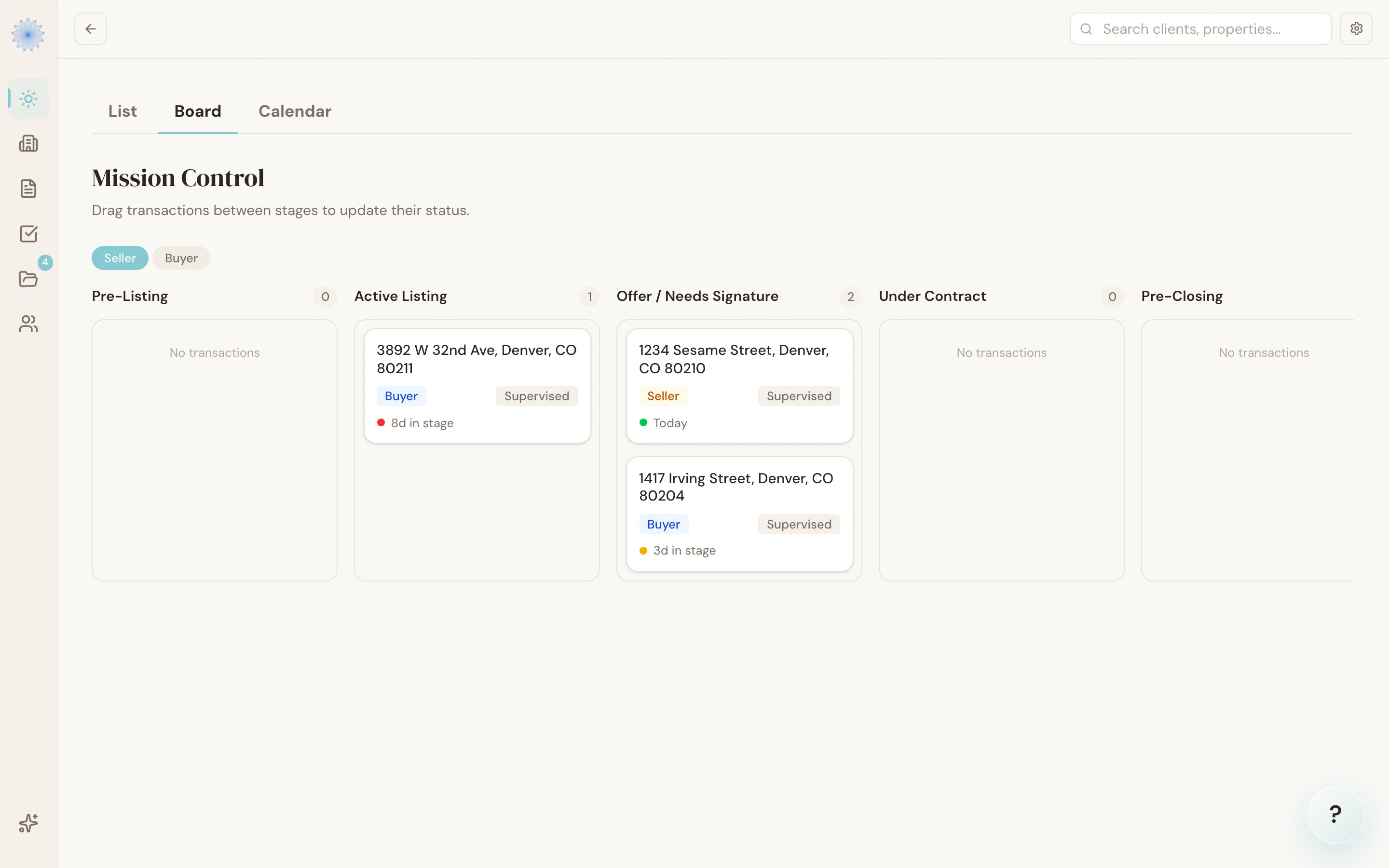
Reading the Board
Each column is a stage, and each card is a transaction. Use the Seller / Buyer toggle above the columns to switch which side's pipeline you're looking at — your choice is remembered the next time you open the Board.
Every card shows:
- The buyer or seller name when the transaction has one, with the property address below it. A transaction started without an address shows No address yet.
- A Buyer or Seller badge
- An autonomy badge, if you have the AI TC add-on
- A colored dot showing how long the transaction has sat in its current stage — green under 3 days, yellow at 3–7 days, red past 7 days
Click a card to open the full transaction.
Move a transaction between stages
Drag a card from one column and drop it in another. Done-Deal updates the stage immediately and shows a confirmation message. On touch devices, press and hold briefly before dragging so a scroll isn't mistaken for a drag.
Note: Moving a card into Pre-Closing adds closing-related compliance actions to your Feed automatically.
If you drop a card somewhere that isn't a valid next stage — for example, dragging straight to Closed — Done-Deal puts the card back and tells you why. See Transaction stages for the full stage order and which moves are allowed.
Tip: If a drag doesn't take, check your connection. Board updates require a live request to save; a failed request reverts the card and shows an error instead of silently failing.
FAQ
Why does the Board look different depending on Buyer or Seller?
The stage names change to match how you'd describe that side of a transaction — for example, seller-side "Pre-Listing" is buyer-side "Pre-Offer" — but they're the same underlying stages.
Can I reorder cards within a column?
No. Cards within a column aren't manually sortable; only moving between columns (changing stage) is supported.
What does the colored dot on a card mean?
It's how long the transaction has been sitting in its current stage — green (under 3 days), yellow (3–7 days), or red (over a week) — so you can spot transactions that are stalling.
Related articles
Still stuck?
Email support@done-deal.co and a real person will get back to you — usually the same business day.