
Setting up and using the MLS bookmarklet
The MLS bookmarklet is a one-click browser bookmark that pulls listing details from an MLS page straight into a new Done-Deal contract, so you don't have to retype the address, price, beds/baths, and other property details by hand. This article covers installing it once and using it while filling out a contract.
Install the bookmarklet (one-time setup)
- Go to Settings → Integrations.
- Make sure your browser's bookmarks bar is visible (Cmd+Shift+B on Mac).
- Drag the Done-Deal button on that page to your bookmarks bar.
That's the whole setup — the button is tied to a personal token for your account, so it only works while you're logged in.
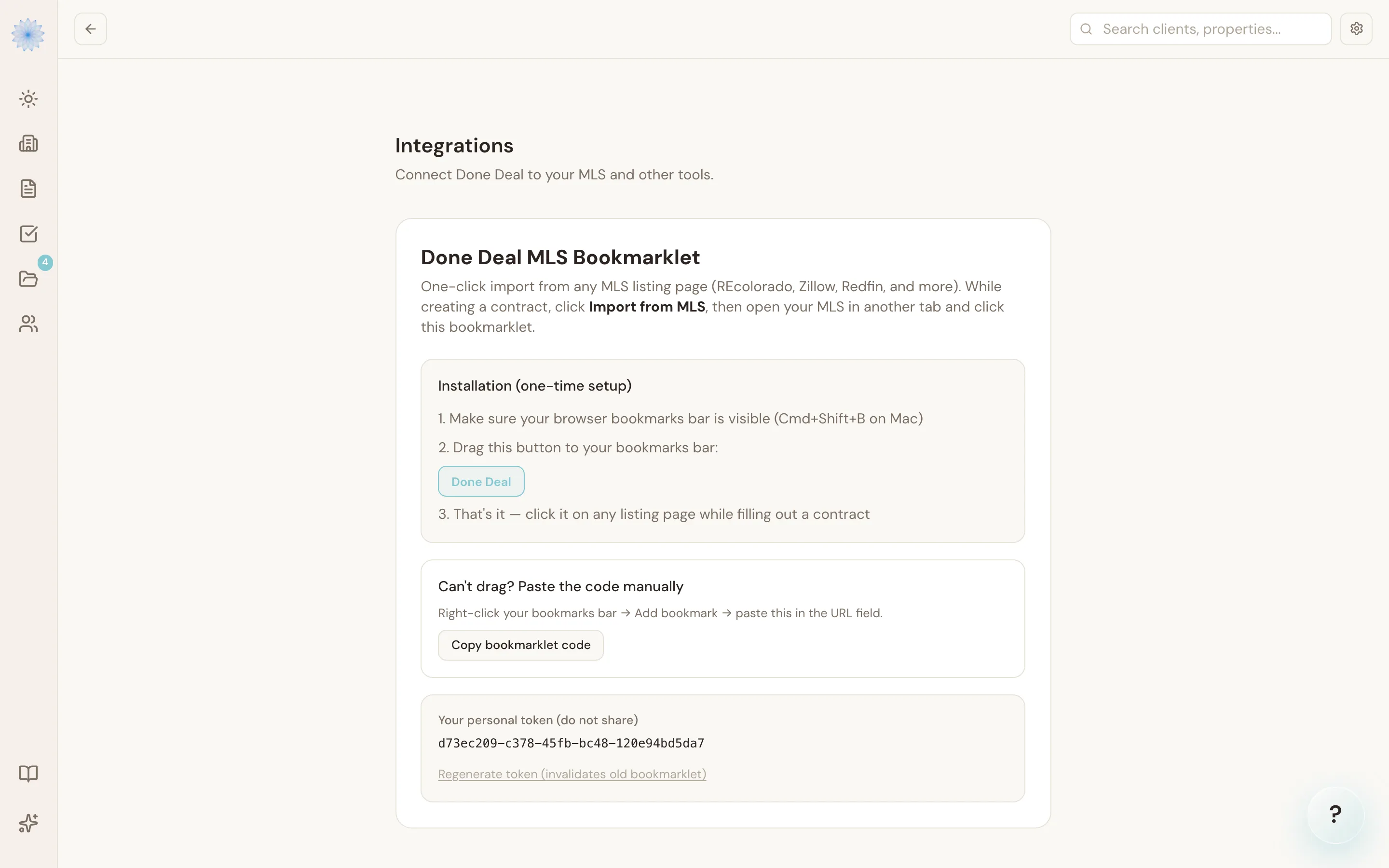
Tip: Can't drag on your browser or device? Click Copy bookmarklet code on the same page, then right-click your bookmarks bar, choose Add bookmark, and paste the code into the URL field instead.
Warning: Your bookmarklet is tied to a personal token. Don't share it — anyone with the link could import listing data into your account. If you ever need to invalidate it, click Regenerate token on the Integrations page and re-install the bookmarklet.
Using it while filling out a contract
- Start a new contract and choose Import from MLS on the address step.
- Open your MLS listing in another browser tab — REcolorado, Zillow, Redfin, and similar listing sites are supported.
- Navigate to the specific listing you want to use.
- Click your Done-Deal bookmarklet. A confirmation banner appears on the listing page once the import succeeds.
- Switch back to your Done-Deal tab — the contract form fills in automatically with what it found.
What it pulls in
From a listing page, the bookmarklet reads the property address, list price, bedrooms, bathrooms, square footage, year built, MLS number, and flags for HOA, solar, well, and septic where the page shows them. If it can't find an address on the page, it lets you know so you can navigate to the actual listing rather than a search results page.
Note: Import from MLS is one of three ways to start a contract from listing data — the address step also lets you search by address or paste listing text directly, if you'd rather not use the bookmarklet.
FAQ
Does the bookmarklet work on every MLS site?
It's built for REcolorado and similar Paragon-based MLS systems, with a generic fallback for other listing sites like Zillow and Redfin. Results vary by site — always check the imported fields against the real listing before sending a contract.
The bookmarklet says it could not find an address. What do I do?
Make sure you're on the actual listing detail page, not a search results list or map view, then click the bookmarklet again.
Do I need the AI TC add-on to use the bookmarklet?
No. Importing from MLS is part of the base Forms & Contracts platform.
What if I switch computers or browsers?
Bookmarklets live in your browser's bookmarks bar, so you'll need to install it again on each browser or device — go back to Settings → Integrations and repeat the drag-to-bookmarks-bar step.
Related articles
Still stuck?
Email support@done-deal.co and a real person will get back to you — usually the same business day.