
Finding your deals: List, Board, and Calendar
Done-Deal shows your pipeline three ways: as a List, as a Board (Kanban), and as a Calendar. A tab bar at the top of each one lets you switch between all three without losing your place. This article covers the List view and how the three connect.
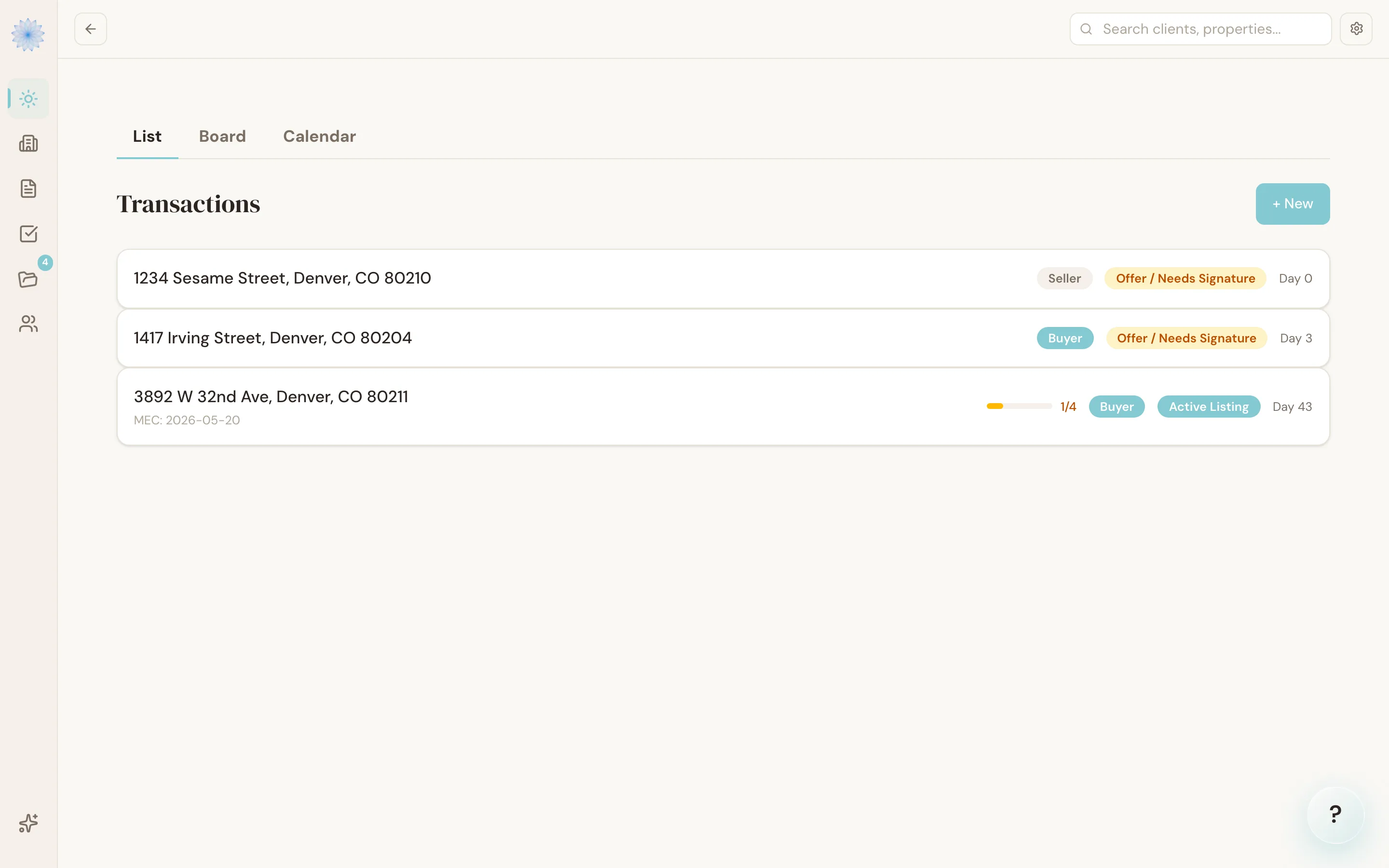
The List view
The List tab shows every active transaction as a row: the buyer or seller name with the property address below it (or No address yet), mutual execution of contract (MEC) date, a Buyer/Seller badge, a stage badge, a task-completion progress bar, and how many days the transaction has been open. Click a row to open that transaction.
Note: If you've bookmarked or typed
/deals, Done-Deal redirects you straight to this list — "Deals" and the transaction List are the same pipeline, viewed the same way.
Switching views
Use the tab bar (List / Board / Calendar) to move between:
- List — the row-based view described above, best for scanning many deals at once.
- Board — a drag-and-drop Kanban view organized by stage.
- Calendar — every deadline and scheduled task across your transactions, by date.
All three views show the same underlying transactions — pick whichever view fits what you're trying to do.
FAQ
Which view should I use day-to-day?
There's no single right answer. Many agents check the Board to see what's moving and stalling, and switch to List when they need to scan every open deal at once, or Calendar when planning the week.
Do closed or archived deals show up in these views?
Closed deals show in the List and Board with a Closed badge/column. Archived transactions don't appear in any of the three views — see Trash and recovery for how archiving differs from the file-level trash.
Related articles
Still stuck?
Email support@done-deal.co and a real person will get back to you — usually the same business day.