
Using the Calendar
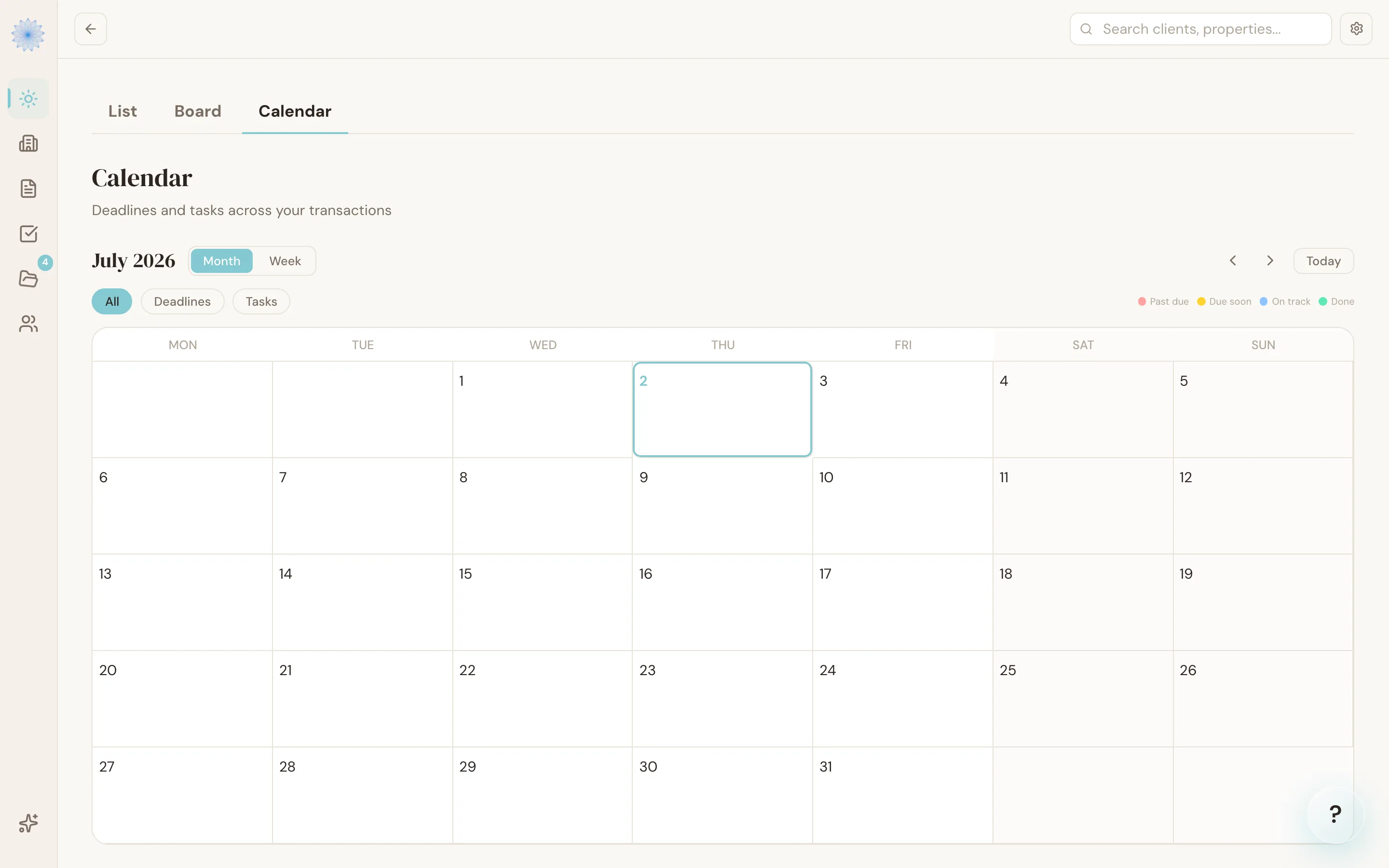
The Calendar pulls every deadline and calendar-linked task from all your active transactions onto one view, so you're not checking each transaction separately. Open it from the Calendar tab next to Board and List.
Viewing your schedule
Use the month and week view toggle, and the arrows (or Today button) to move through dates. Each deadline or task shows as a colored pill on its date — click one to see its details, including which transaction it belongs to.
Filter the calendar to show All, only Deadlines, or only Tasks using the filter control above the grid.
Rescheduling
Drag a deadline or task pill to a new date to reschedule it. Done-Deal saves the new date immediately.
Warning: Dragging a deadline changes its due date directly. If the deadline was calculated from your mutual execution of contract (MEC) or closing date, moving it here does not also move the date it was calculated from — the two can drift out of sync if you're not careful.
Pinning items
Deadlines and tasks can be pinned so they stay visually prioritized on the calendar rather than getting lost among everything else due that week.
FAQ
Does the Calendar include transactions I've archived?
No. Only deadlines and tasks from active (non-archived) transactions appear.
Can I see just one transaction's deadlines here?
The Calendar is combined across all your transactions by design. To see a single transaction's deadlines on their own, open that transaction's detail page instead.
What's the difference between a deadline and a task on the calendar?
Deadlines come from Colorado's contract timeline (inspection, appraisal, loan, and so on) and are calculated automatically. Tasks are checklist items that may or may not have a due date — only tasks with a calendar date or due date appear here.
Related articles
Still stuck?
Email support@done-deal.co and a real person will get back to you — usually the same business day.