
Filling out a contract
When you open a draft, Done-Deal renders the actual CREC form on screen and lets you type directly onto it — no separate list of fields to fill in and match up later. This article covers how that editor works.
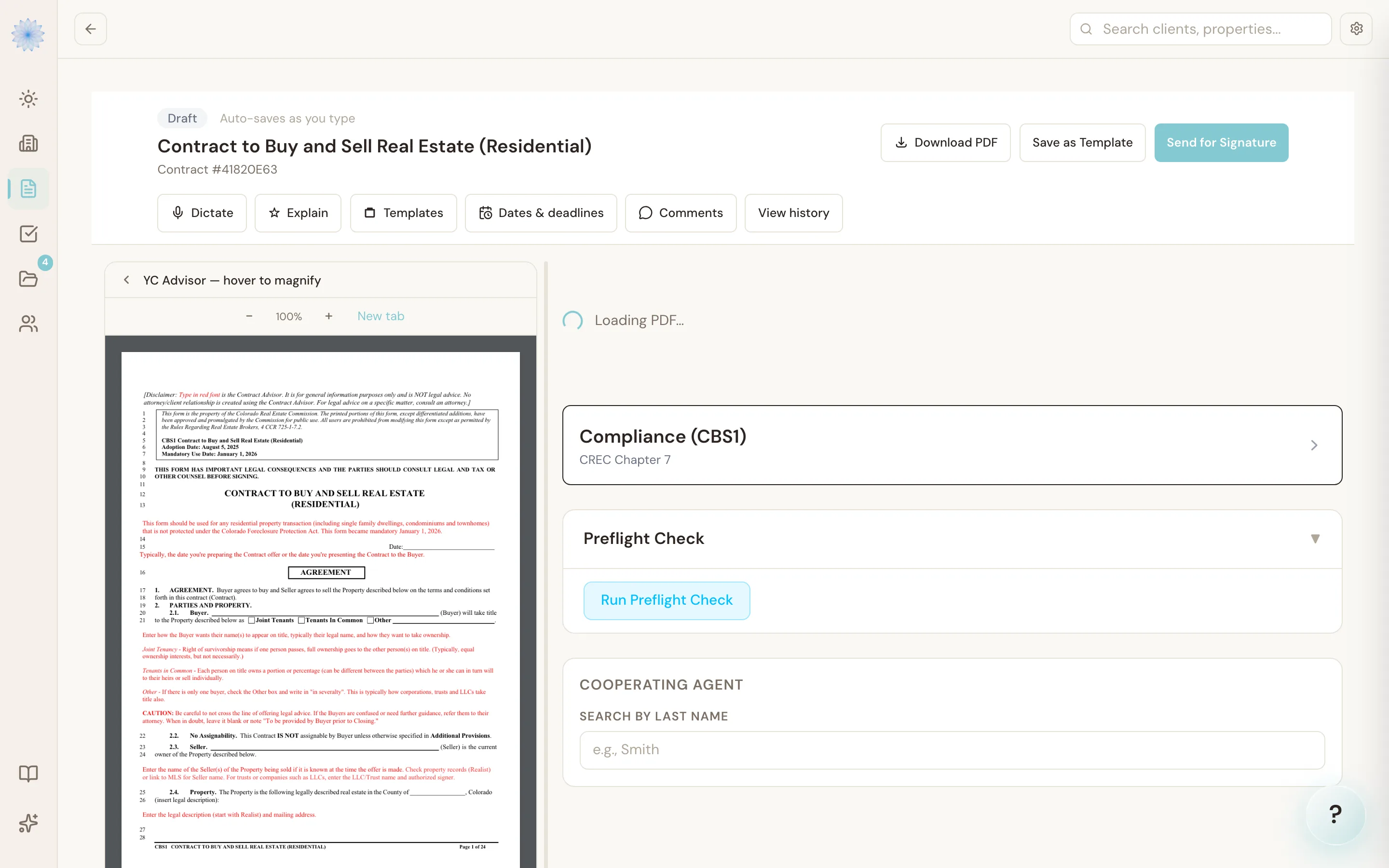
Typing into the form
Each page of the form renders as an image with real, clickable fields laid on top of it in the same spots as the printed form. Click into any field and type — text fields, checkboxes, and dropdowns all work the way you'd expect.
Multi-line boxes (Additional Provisions, Exclusions, water rights, and similar write-in areas) render as larger text areas so you have room to write more than a line or two.
Tip: Before you click into a field, it shows a faint blue highlight and outline so you can see every fillable spot on the page, even ones that are currently empty.
The blue-ink convention
Colorado Real Estate Commission rules (CREC §7.2.E) require that anything you type onto a commission-approved form be visually distinct from the form's printed text, so nobody can mistake your entry for boilerplate language. Done-Deal enforces this automatically:
- Anything you type renders in blue, in a different typeface than the printed form text.
- A checked checkbox fills solid blue with a bold white check mark, so a selection is unmistakable at a glance.
This applies both on screen and in the PDF Done-Deal generates when you download or send the contract — the blue styling isn't just a screen effect. You don't need to do anything to trigger it; it's automatic on every field you fill in.
Autosave
Changes save automatically about half a second after you stop typing. The save indicator near the top of the page tells you what's happening:
- Auto-saves as you type — nothing pending.
- Saving… — a save is in progress.
- Auto-saved Xs ago — your last change is safely stored.
If a save fails (for example, a dropped connection), Done-Deal retries automatically with increasing delays. If it can't save after several attempts, it shows an error and asks you to refresh — don't close the tab before that clears, or the pending change could be lost.
Warning: If you try to leave the page with unsaved changes still pending, your browser will warn you before navigating away.
Other tools in the editor
Alongside the form itself, the editor toolbar gives you:
- Dictate — speak field values instead of typing them.
- Explain — an AI-generated, section-by-section read of the contract, flagging anything unusual for review.
- Dates & deadlines — fills section 3 Dates and Deadlines from one of your saved date templates in one step; see Filling contract dates with date templates.
- Templates — apply a saved template's field values to this draft, or save the current draft as a new template.
- Comments — leave notes for anyone else working the file.
- View history — the full change log for this contract; see Contract history and versions.
- Download PDF — download the filled contract at any time.
Whose broker info goes on the contract (coordinators)
When you start a new contract as a transaction coordinator, Done-Deal does not put your own details in the broker information block. Instead, a picker asks Whose broker info goes on this contract?
- On the New Contract page, open the picker.
- Choose one of the agents you coordinate for. Their name, license, brokerage, and contact info fill the broker block.
- Or leave it on Leave blank, I will fill it in (the default) and fill the block yourself in the editor.
This applies when you start from a template too. Agents and brokers don't see the picker. Their own information fills the block as usual. When you build a new template, the picker is hidden and the broker block stays blank.
Templates you save as a coordinator never keep your own details, and the broker blocks are left out. When you apply one of your templates to a contract you already have open, the broker block keeps whatever the contract had. That includes templates you saved before this change: your name and license are taken out each time you apply them.
Note: If the picker isn't there, you may not be set up to coordinate for any agents yet. The block starts blank.
Adding a clause
Look for the small + button anchored to the top-right corner of any multi-line write-in box. Click it to insert a saved clause from your clause library directly into that field — see The clauses library for how to build and manage your clauses.
Hiding a section from the print out (CBS1)
On a CBS1 you can mark certain sections that don't apply as "Do not display in print out", the same way it works in CTM eContracts (CTM). You can hide:
- §4.5 New Loan
- §4.6 Assumption
- §4.7 Seller or Private Financing
- §5 Financing Conditions and Obligations (the whole section)
- §5.3 Credit Information and §5.4 Existing Loan Review (one box for both)
- Open the Compliance (CBS1) panel next to the editor.
- Under Hide sections from the print out, check Do not display in print out for the section.
- Pick which party asked for it, then confirm.
The choice applies to this contract only. Every other contract, and every section you don't check, prints normally. Uncheck the box to print the section in full again.
In the PDF, a hidden section keeps its number and caption, followed by "(Omitted as inapplicable)", for example:
5.3. Credit Information. (Omitted as inapplicable)
The rest of the section and its fill-in boxes are left blank. Section numbers and line numbers don't change, so the rest of the contract keeps its usual layout.
Once the contract is sent for signature, these choices are locked: the contract prints the way it was sent, including after it's signed.
Note: Download PDF shows the change right away. The on-screen editor shows it after you reload the page.
FAQ
Why is my typed text blue instead of black?
That's intentional — Colorado real estate rules require agent-entered text on commission-approved forms to be visually distinct from the printed form. Done-Deal handles this automatically; there's no setting to turn it off.
Can two people edit the same draft at the same time?
Yes, on the desktop editor. Changes from other collaborators sync in near real time while the draft is open.
What happens to signature fields in the editor?
Signature fields don't appear in the on-screen editor — you never sign inside the field-filling view. Signing happens as a separate step once the contract is ready to send.
Related articles
Still stuck?
Email support@done-deal.co and a real person will get back to you — usually the same business day.