
Editing and managing a transaction
Once a transaction exists, almost everything you do with it happens on its detail page — updating fields, checking who touched what and when, and archiving it when you're done. This article covers that page. If you haven't created a transaction yet, start with Your first transaction.
The transaction detail page
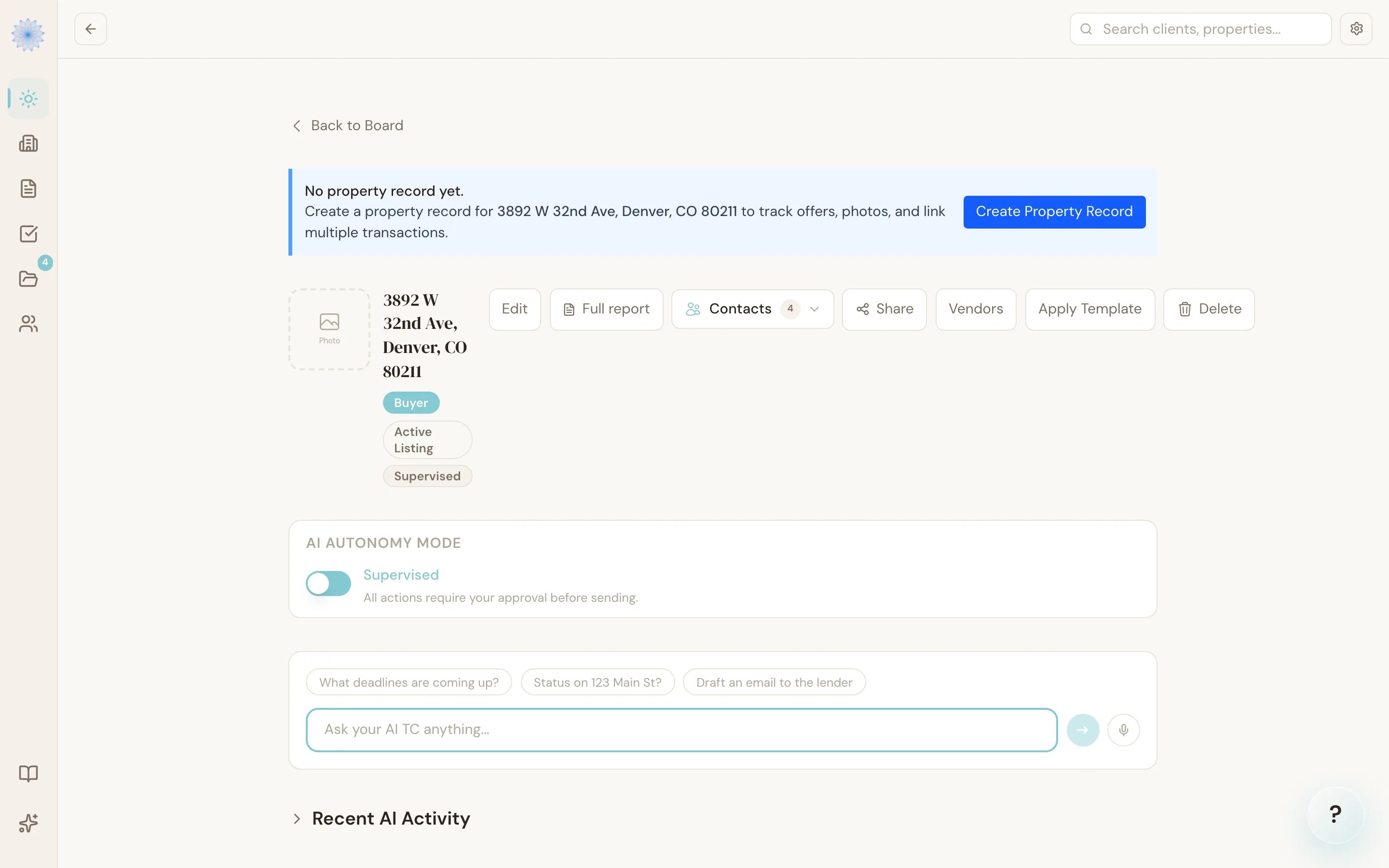
Open a transaction from Transactions, the Board, or your Home dashboard. At the top you'll see the property address, a Buyer or Seller badge, the current stage, and — if you have the AI TC add-on — an "AI Active" or "Supervised" badge showing the autonomy mode.
A row of buttons sits to the right of the header:
- Edit — opens the edit form (below).
- Full report — a printable summary of the transaction.
- Contacts — a dropdown of every party on the transaction.
- Client Portal Links — creates a client-facing link to this transaction.
- Vendors — attach an HOA, title company, lender, or inspector.
- Delete — archives the transaction (see below).
Below that, the page shows your tasks, documents, deadlines, and parties for the transaction. The Active Tasks section has + Add task for a single task and + Add checklist to load one of your saved task templates. If you have the AI TC add-on, you'll also see Reme's recent activity and an autonomy mode toggle.
Note: Reme, the Ask TC panel, and the AI activity feed on this page are part of the AI TC add-on. See Plans and pricing.
Start a transaction from a contact
You don't need a property address to start a transaction. If you're working with a client before they've found a home, start from the person.
- Open Transactions and click New Transaction.
- In the contact search at the top, type the person's name and click them in the results. If they aren't in your Contacts yet, click Add "name" as a new contact, enter a name (required), email, and phone, then click Add Contact.
- Choose your side, Buyer or Seller. The contact's name fills in as the buyer or seller.
- Fill in anything else you know. The property address is optional while a contact is selected.
- Click Create deal.
To pick someone else, click the X next to the selected contact.
The transaction shows the buyer or seller name as its main label, with the address below it, or No address yet until you add one. Click Edit on the detail page to add the address later. The contact's page lists the transaction too.
Edit a transaction's details
Click Edit to open the edit form. You can update:
- Property address
- Side — Buyer or Seller
- MEC date and closing date
- Sale price
- Financial fields — referral, TC fee, transaction fee, concessions, security deposit
- Disbursement fields — commission check received date and amount received (filled in after closing)
- Showing instructions and additional provisions (free text)
Click Save Changes to apply them, or Cancel to go back without saving.
Warning: Changing the mutual execution of contract (MEC) date or closing date after deadlines have already been calculated does not automatically move them. Check your deadline list after changing either date.
Parties (buyer, seller, agents, lender, title, and so on) aren't edited here — add or update them from the Parties section further down the detail page.
Review the activity log
Some accounts have an Activity tab on the transaction, reachable from the detail page. It lists a timeline of everything recorded against the transaction — field changes, document uploads, AI actions, and more — each with who (or what) made the change and when. A Verify button confirms the log hasn't been tampered with.
Note: The Activity tab is rolling out gradually. If you don't see it yet on a transaction, it isn't available on your account.
Archive a transaction
Click Delete in the header, then confirm. This archives the transaction — it disappears from the Board and the Transactions list, and Reme stops actively working it. Archiving is not the same as the file-level trash used for documents, tasks, and parties; see Trash and recovery for how those work.
Warning: Archiving is intended for transactions that fell through or were entered by mistake, not for closed transactions. Move a completed transaction to the Closed stage instead — see Transaction stages.
FAQ
Can I undo archiving a transaction?
Contact support if you archived a transaction by mistake. There's no self-service restore for an archived transaction from the detail page.
Do I have to enter an address to create a transaction?
Only if you haven't selected a contact. With a contact selected, the address is optional and you can add it later with Edit.
Does archiving delete the documents and tasks on the transaction?
No. Archiving only changes the transaction's stage. Its documents, tasks, deadlines, and parties stay attached to it.
Where do I add a co-agent to a transaction I don't own?
Scroll to the Co-Agents panel near the bottom of the detail page. It's separate from the Parties section, which covers buyers, sellers, and vendors.
Related articles
Still stuck?
Email support@done-deal.co and a real person will get back to you — usually the same business day.