
Working with tasks and task templates
Every task Done-Deal creates — the standard checklist, compliance tasks, and anything you add by hand — shows up in two places: on the transaction itself, and in one combined list on the Tasks page. This article covers both, and how to build your own reusable task templates.
The Tasks page
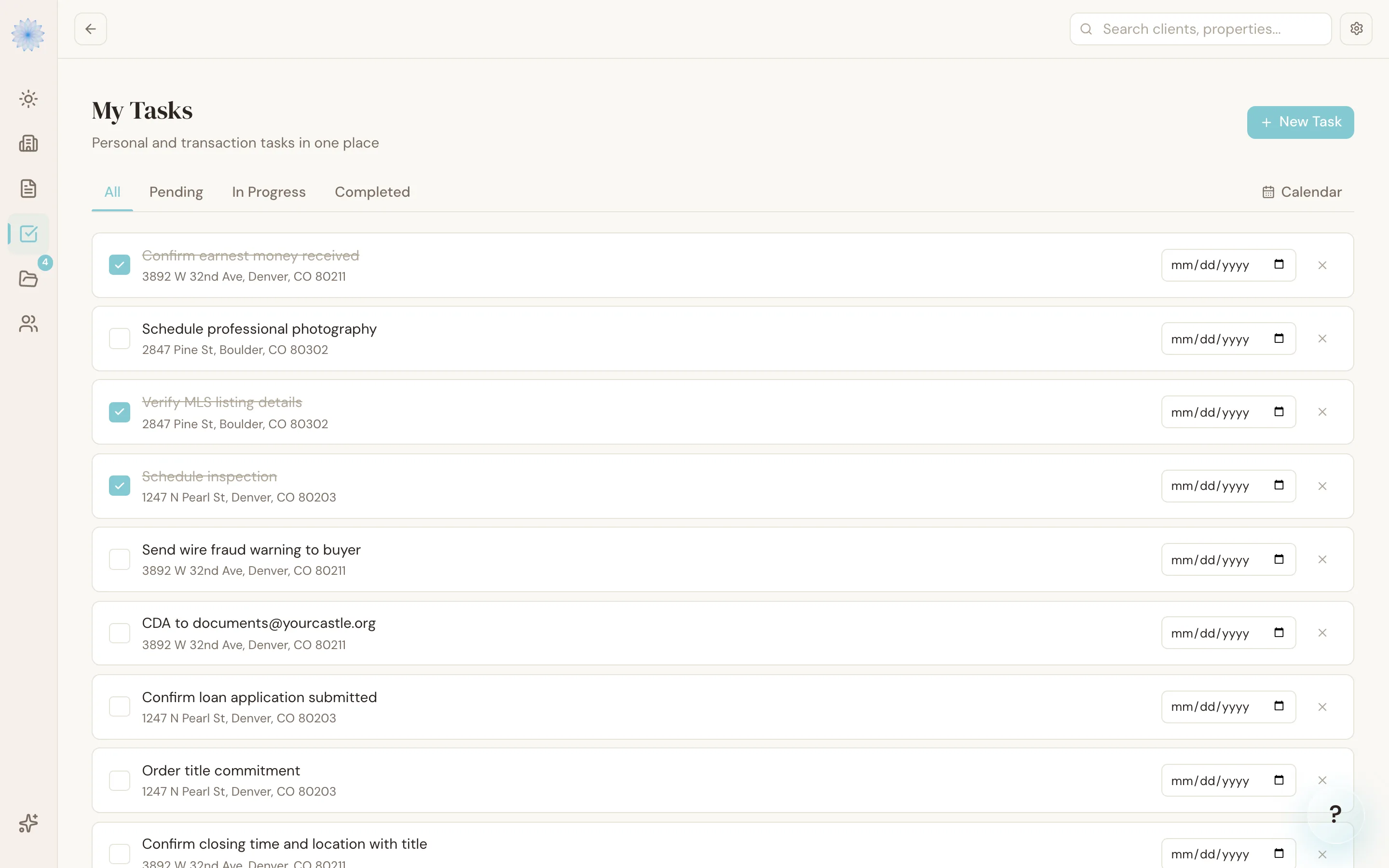
Tasks in the sidebar shows every task across all your transactions, up to 200 at a time, soonest due date first. Use the tabs to filter by status: All, Pending, In Progress, and Completed. Each task shows its title, due date (if it has one), and the property it belongs to, so you can work your whole task list without opening each transaction individually.
You can add a task by hand from this page — give it a title and, optionally, a due date. Manually added tasks aren't tied to a compliance trigger or deadline; they're just yours.
On a transaction itself, its tasks appear in the Tasks section alongside deadlines and AI activity (if you have the AI TC add-on), so you can see everything for that transaction in one place.
Task templates
Settings → Task Templates lets you build reusable checklists instead of re-creating the same tasks on every transaction. A template has a name, a transaction type (All, Buyer, Seller, Tenant, or Landlord), and a list of items.
What each template item can define
- Title — required.
- Description — optional detail.
- Assigned to — Agent, AI, Lender, Title, Inspector, Buyer, Seller, or left unassigned.
- Risk level — Low, Medium, High, or none.
- Due date anchor — No due date, Days from mutual execution of contract (MEC), or Days from Closing.
- Days offset — how many days from that anchor the task is due (only shown once an anchor is selected).
- Business days only — a checkbox that switches the offset from calendar days to business days, using the same Saturday/Sunday-only rule as the deadline engine. See How deadlines are calculated for exactly how that counting works.
Creating and editing templates
- Go to Settings → Task Templates.
- Click New template, name it, and choose a transaction type.
- Click + Add item for each task you want in the checklist, filling in the fields above.
- Click Save.
Templates you create are yours — only you can edit or delete them. If your brokerage has published shared templates, they appear in the same list marked Brokerage; every agent at the brokerage can view and apply them, but only a broker or admin can edit or delete one.
Adding a template to a transaction
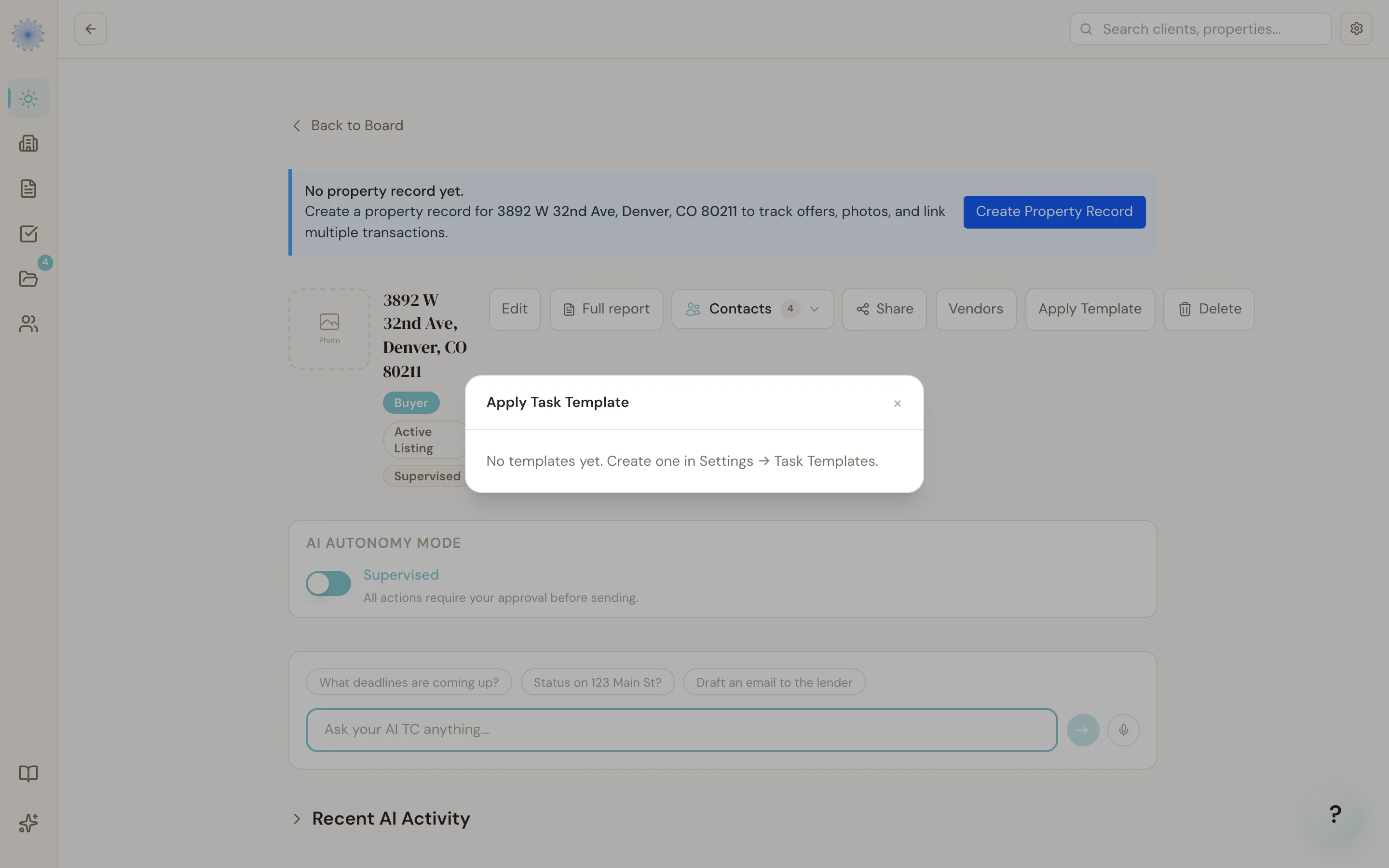
Open a transaction and click + Add checklist on the Active Tasks section, next to + Add task. Pick a template, then choose which items to include — every item is checked by default, so uncheck anything you don't want on this particular transaction.
When you add a template:
- Items with a due date anchor get their due date calculated from that transaction's actual MEC or closing date, the same way the deadline engine works.
- If the anchor date isn't set yet (for example, the transaction has no MEC date), the task is still created — its description notes that a date is pending — so nothing gets lost while you wait for that date.
- Any item whose title already matches an existing task on the transaction is skipped, so adding the same template twice won't create duplicates.
Templates for transaction coordinators
If you're a transaction coordinator working for several agents, you can keep one everyday checklist for most of them and special ones for agents who work differently, such as a relocation agent.
Choosing which agents a template is for
- Go to Settings → Task Templates and click Edit on a template (or New template).
- Under Use for which agents?, tick the agents this template is for. Leave every box empty to make it your everyday template for all your agents.
- Click Save.
The list only shows agents you're coordinating for right now. Each template in your list shows All agents or the names of the agents it's for.
Which template gets picked for you
When you click + Add checklist on a transaction you coordinate, or create a new transaction and choose Which agent is this for?, Done-Deal picks a template for you:
- The template you assigned to that agent, if there is one.
- Otherwise, your everyday template (one with no agents ticked).
- A template made for the transaction's side (buyer or seller) wins over an All template.
The pick is only a starting point. Choose a different template, or No checklist on a new transaction, at any time. If two templates fit equally well (for example, two everyday templates for the same side), Done-Deal doesn't guess, and you pick one yourself.
On a new transaction, the agent you choose is only used to pick the checklist. It doesn't send the transaction to that agent.
FAQ
Can I reuse a task template across every transaction type?
Yes — set the template's transaction type to All, or create separate buyer/seller/tenant/landlord templates if your checklists differ by transaction type.
What happens to tasks I already created if I apply a template later?
Nothing changes for tasks that already exist. The template only adds items whose titles don't already match a task on the transaction — it never overwrites or duplicates.
Can I edit a brokerage template?
Only if you're a broker or admin at that brokerage. Other agents can view and apply brokerage templates, but editing and deleting is restricted to brokerage admins.
I stopped coordinating for an agent. What happens to their template?
It stays in your list and you can still apply it by hand, but it's no longer picked for anyone. The next time you save it, that agent comes off it. Tick other agents, or none to make it an everyday template.
Do template due dates update if I change the MEC or closing date later?
No — a template's due dates are calculated once, at the moment you apply it. If you change the transaction's MEC or closing date afterward, review any tasks that were anchored to the old date.
Related articles
Still stuck?
Email support@done-deal.co and a real person will get back to you — usually the same business day.